User Guide
Everything you need to get the most out of SubPolice. From first setup to advanced features, this guide covers it all.
1. Getting Started
Download & Install
Download SubPolice for free from the Google Play Store. No account creation is required — just install and open.
Grant Notification Access
On first launch, SubPolice will show an in-app setup guide that walks you through enabling Notification Access step by step. Tap Enable Smart Detection on the banner to open it.
You can also grant access manually: Android Settings > Apps > Special access > Notification access > enable SubPolice.
This is optional.SubPolice works fully without it — you can manage all subscriptions through manual entry.
Battery Optimization (Important for some devices)
On Xiaomi, Oppo, Vivo, and other Chinese OEM devices, aggressive battery optimization can prevent SubPolice from detecting notifications in the background. We recommend:
- Disable battery optimization for SubPolice in your device settings
- Enable "Auto-start" for SubPolice (on Xiaomi/MIUI)
- Lock SubPolice in the recent apps tray to prevent it from being killed
2. Smart Onboarding — App Scan
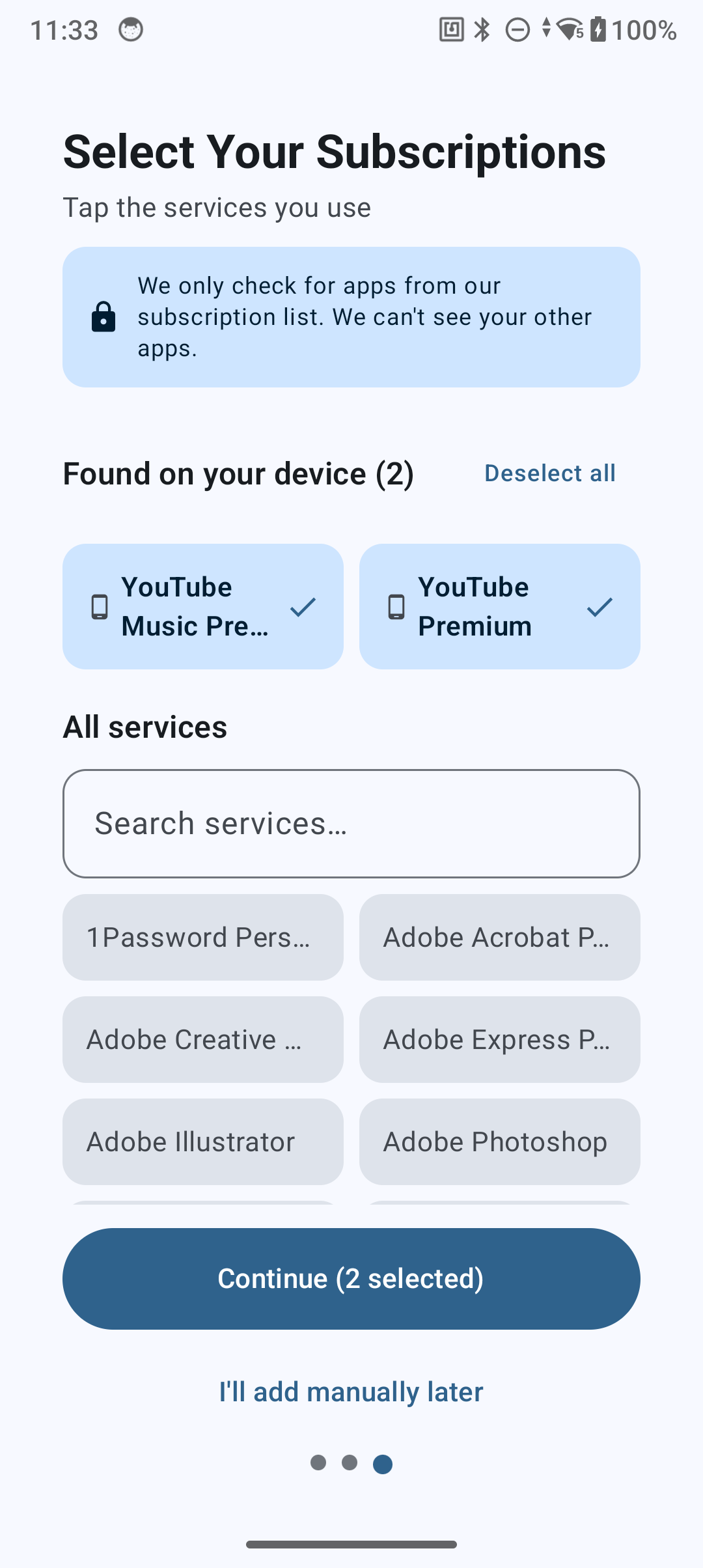
During onboarding, SubPolice scans your installed apps and detects subscription services you likely use. Detected apps appear in a "Found on your device" section, pre-selected for quick setup.
- Review the detected apps and deselect any you don't subscribe to
- Browse the full catalog below to add more services
- Tap Continue to start tracking all selected subscriptions instantly
Privacy: We only check for apps from our known subscription list. We cannot see your other apps, and no app data leaves your device.
3. Your Dashboard
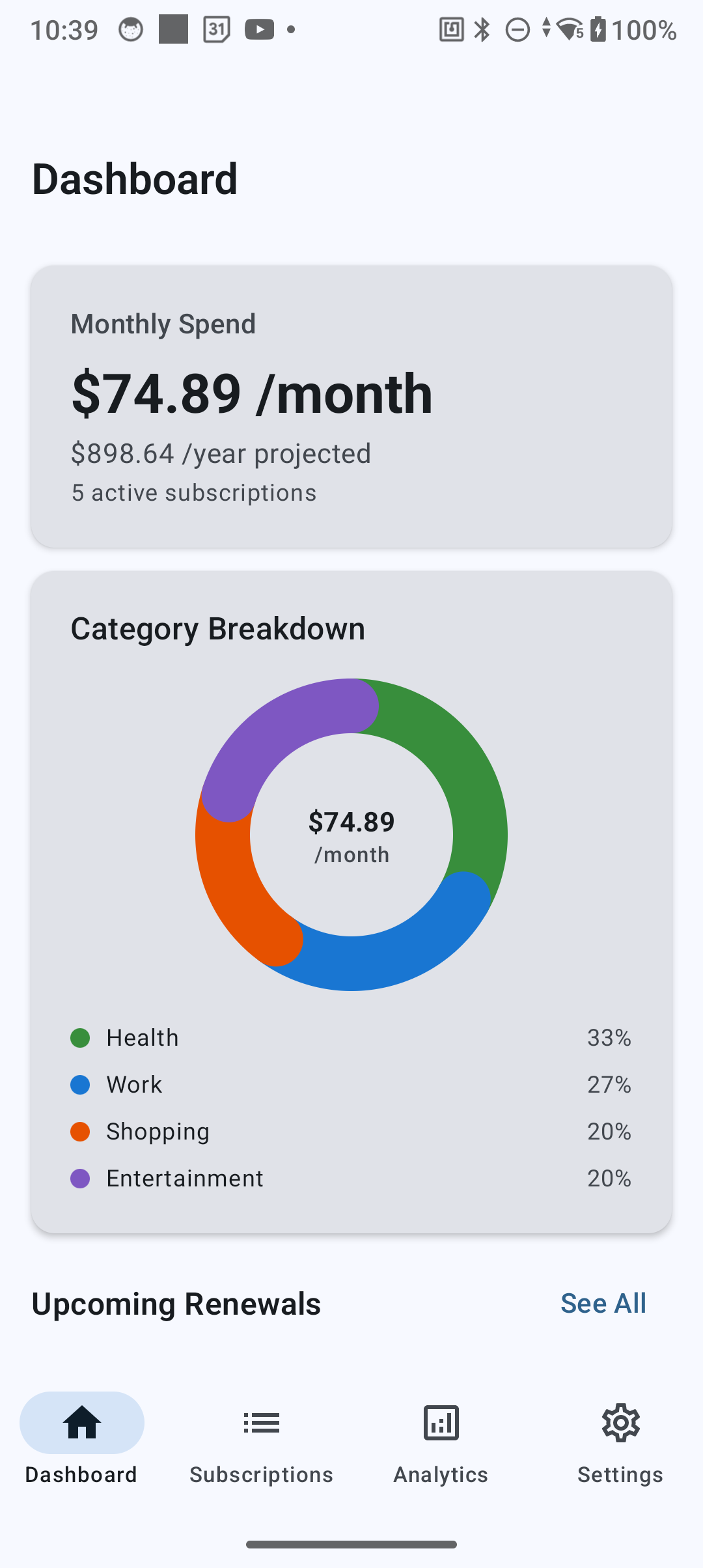
The dashboard is your home base. At a glance, you can see:
- Monthly total spend — how much you're paying this month
- Upcoming renewals — your next 3 renewals with countdown timers
- Category breakdown — spending by category (Entertainment, Work, Health, Shopping)
- Annual projection — estimated yearly subscription cost
- Savings tracker — see how much you've saved by cancelling subscriptions
4. Savings Tracker
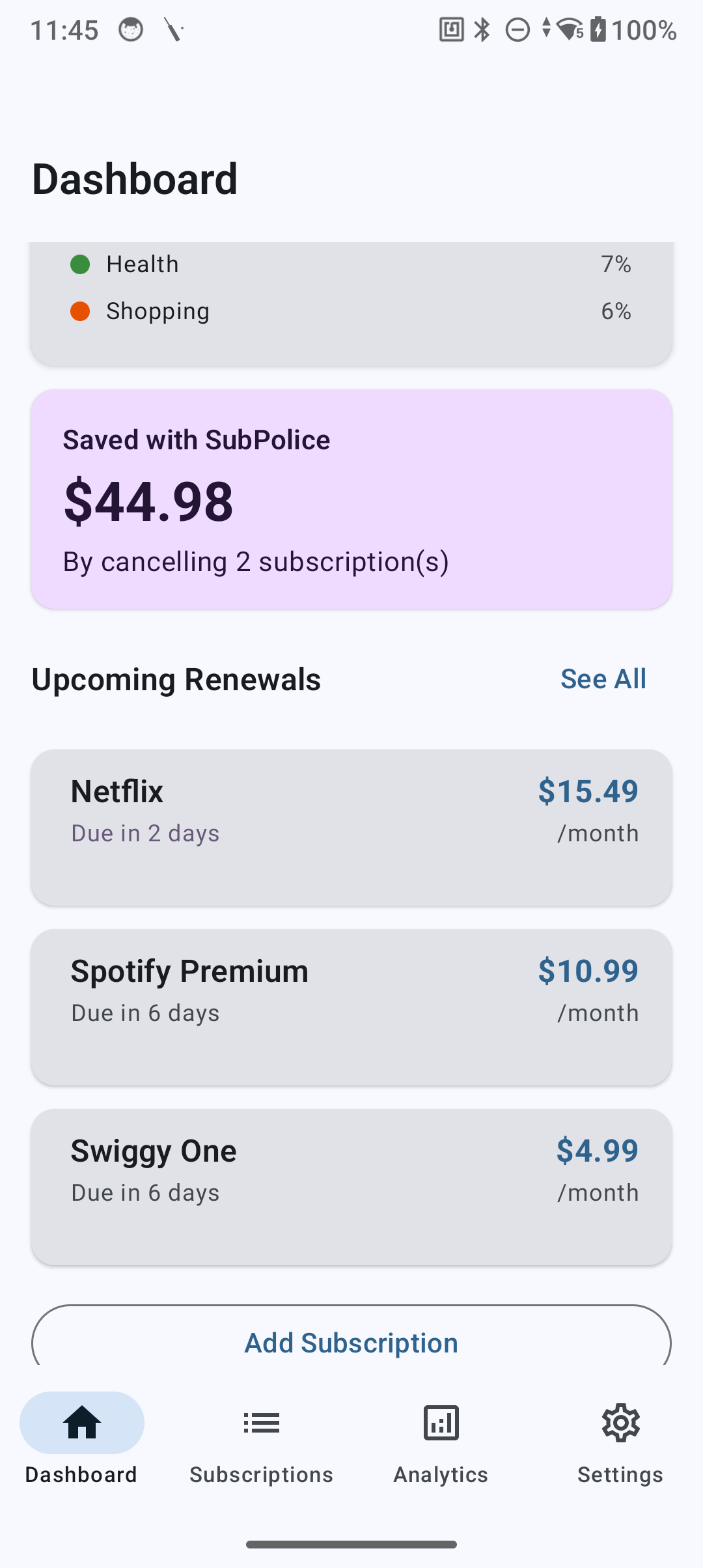
The "Saved with SubPolice"card on your dashboard shows how much money you've saved by cancelling subscriptions. It calculates your cumulative savings from all archived subscriptions.
This card appears automatically once you archive your first subscription, giving you a motivating view of the real money you've saved.
5. AI-Powered Auto-Detection
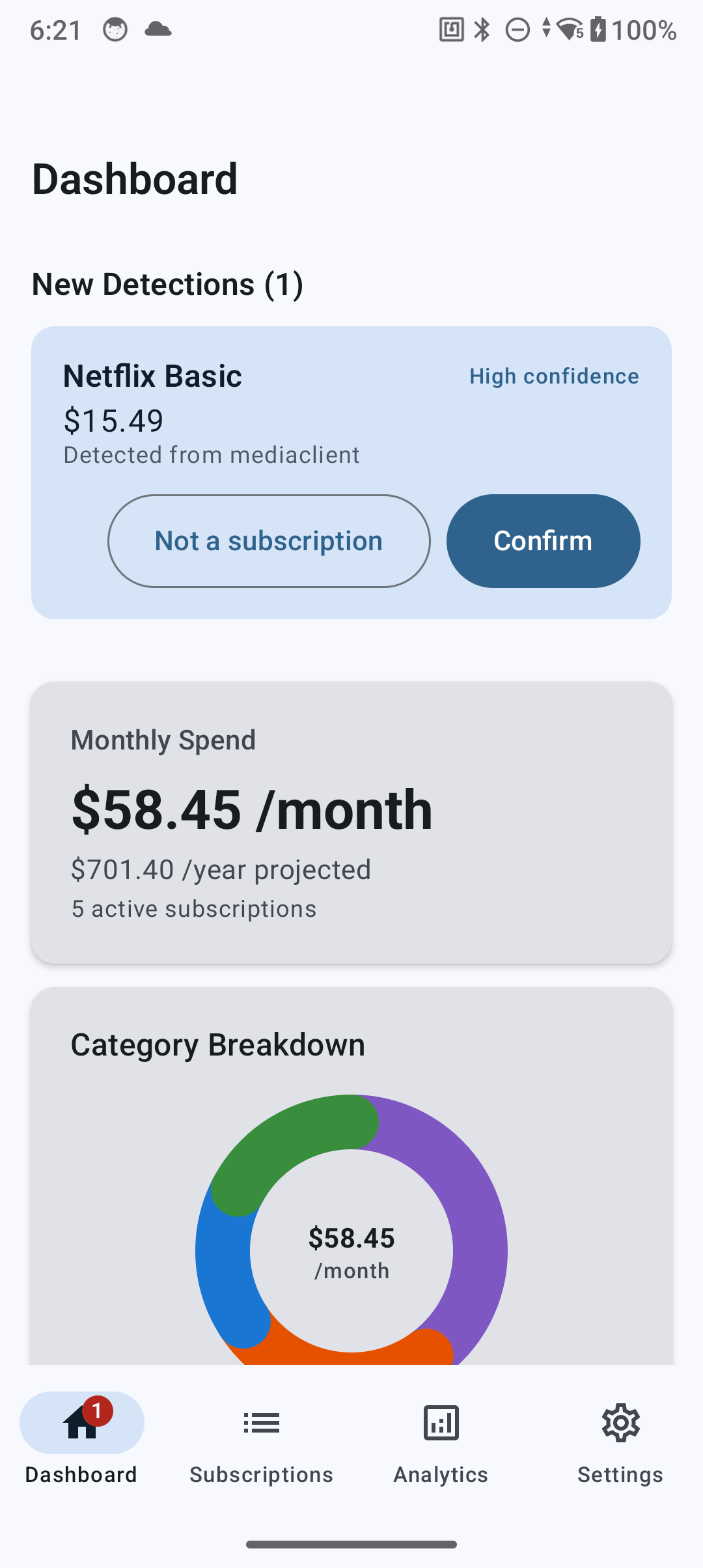
SubPolice uses AI-powered pattern matching combined with Android's NotificationListenerService to automatically detect subscription renewals from your push notifications — all processed on-device.
How the AI detection works
- When you receive a renewal notification (e.g., "Your Netflix subscription has been renewed"), SubPolice's AI engine reads the notification title
- It runs pattern matching against 575+ known service patterns with confidence scoring (High / Medium / Low)
- If a match is found, SubPolice creates a suggestion for you to review
- You confirm or reject the suggestion — nothing is added without your approval
- The AI learns from rejected false positives to improve future detection
Detection coverage
SubPolice achieves approximately 65% automated detection coverage. Many services send billing confirmations via email rather than push notifications, so some subscriptions will need to be added manually. The app is honest about this during onboarding.
6. UPI Autopay Detection
SubPolice automatically detects UPI Autopay mandate and pre-debit notifications from popular UPI apps:
- Google Pay
- PhonePe
- Paytm
- BHIM
- Amazon Pay
- WhatsApp Pay
No setup needed — just ensure Notification Access is enabled. When a UPI Autopay notification arrives, SubPolice creates a detection for you to confirm.
8. Scan Installed Apps
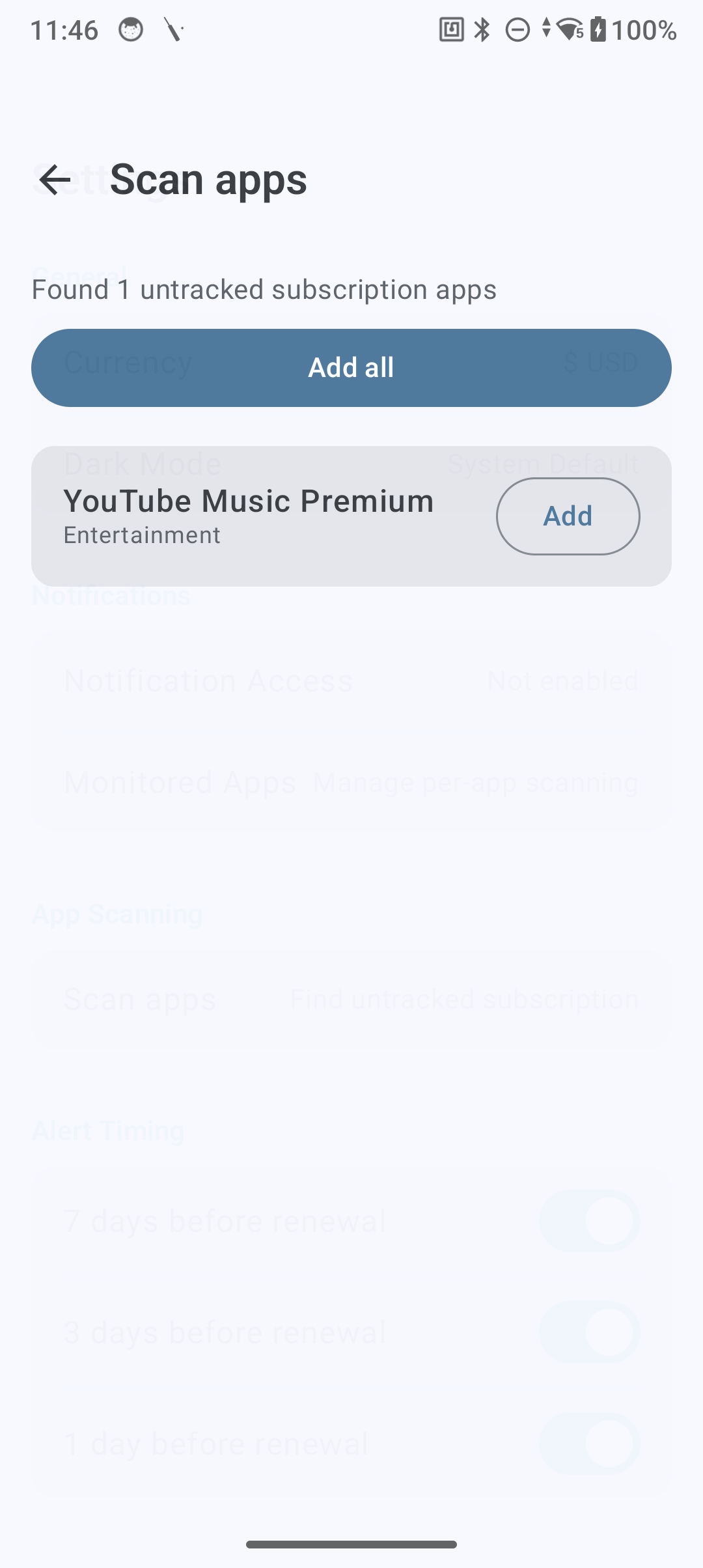
Already past onboarding? Go to Settings > App Scanning > Scan appsto find subscription apps you haven't tracked yet.
- Shows only untracked subscription apps installed on your device
- Tap Add next to any service to start tracking it
- Tap Add all to track everything at once
- If all your subscription apps are already tracked, you'll see a confirmation message
9. Install & Uninstall Detection
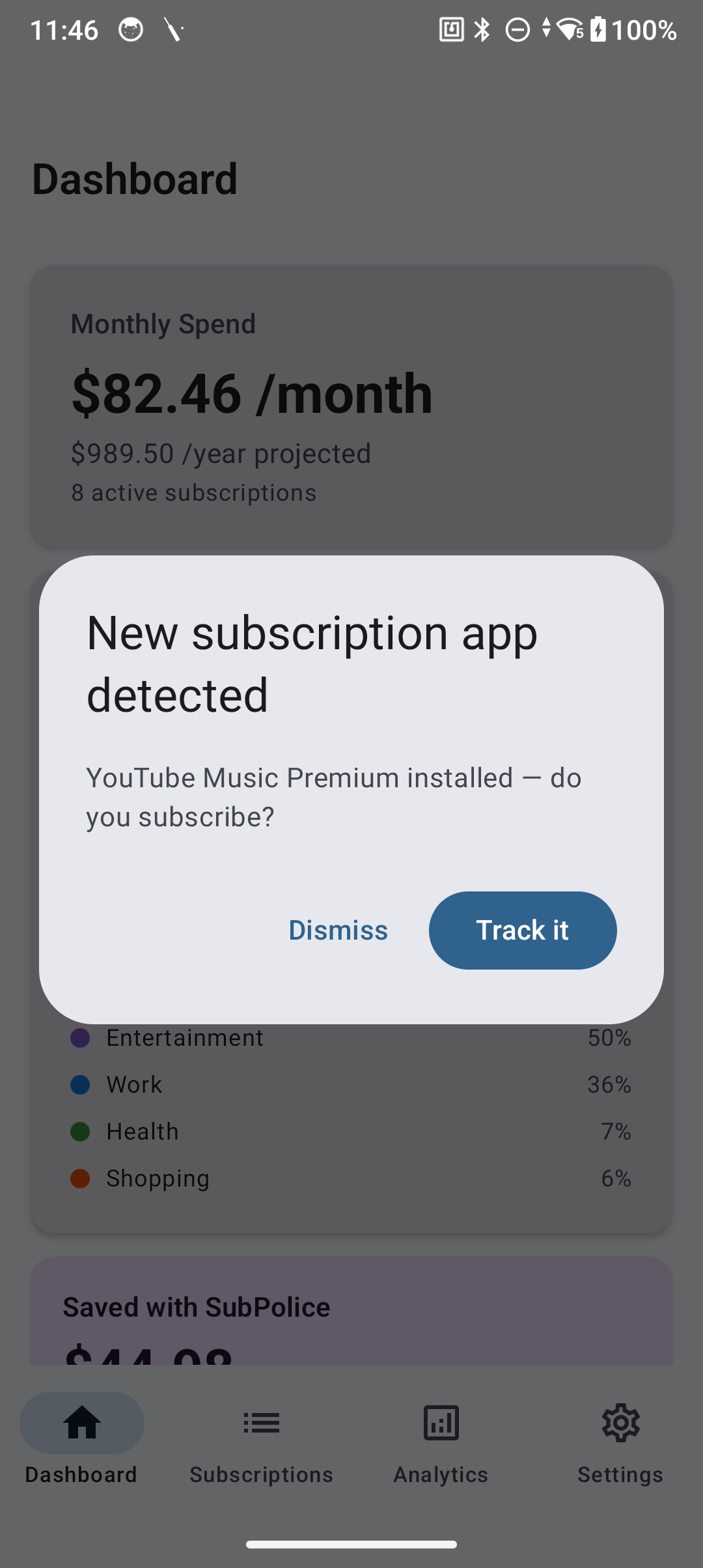
SubPolice monitors for changes to your installed apps every time you open the app:
New app installed
When you install a new subscription app (e.g., Netflix, Spotify), SubPolice prompts you: "[App] installed — do you subscribe?" Tap Track it to add it to your subscriptions, or Dismiss to ignore.
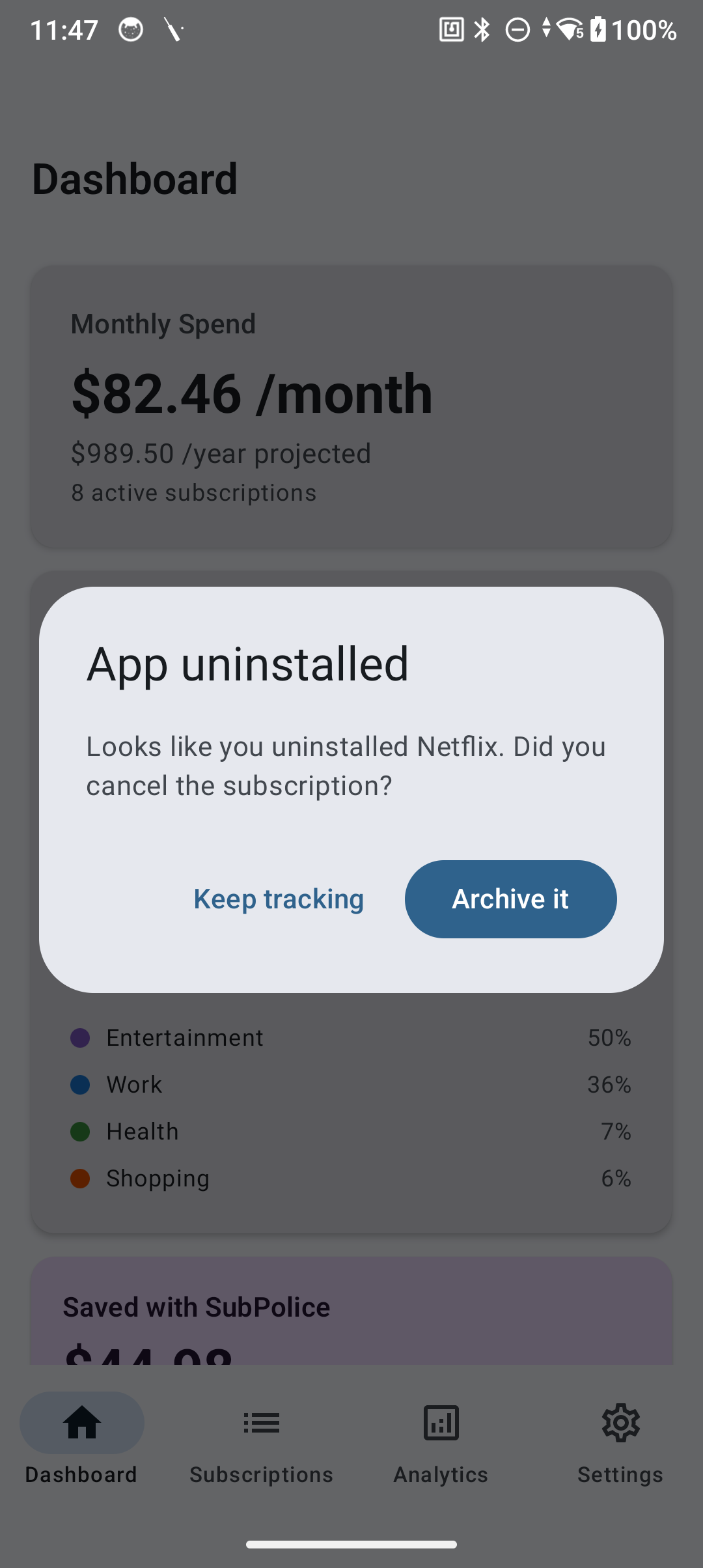
App uninstalled
When you uninstall a tracked subscription app, SubPolice asks: "Did you cancel the subscription?" Tap Archive it to move it to your archived list, or Keep tracking if you still have an active subscription.
10. Adding Subscriptions Manually
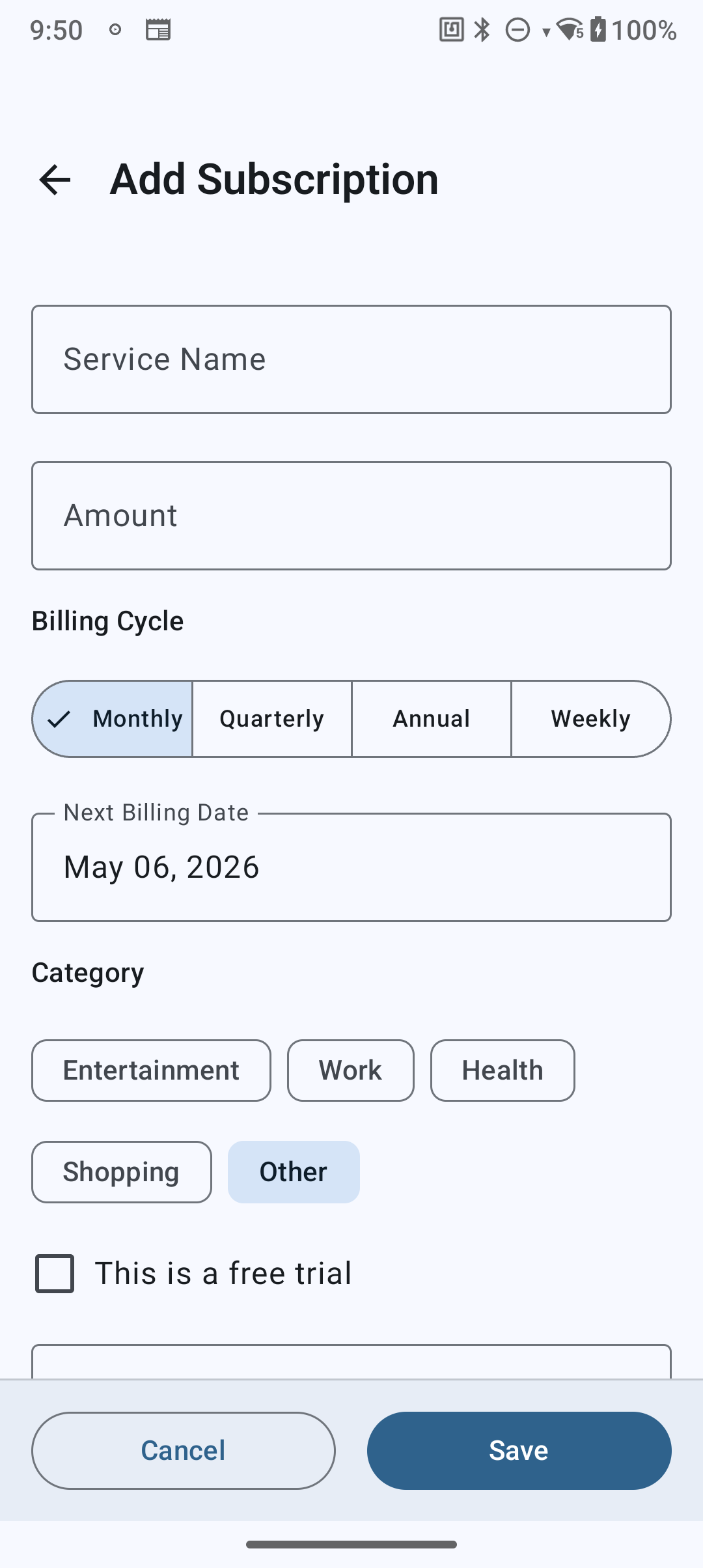
Tap the + button on the dashboard or subscription list to add a subscription manually:
- Search or type — autocomplete suggests from 575+ known services
- Set the amount — in any of 22 supported currencies
- Choose billing cycle — monthly, quarterly, semi-annual, or annual
- Pick a category — Entertainment, Work, Health, Shopping, or Other
- Set next renewal date
- Mark as free trial (optional) — with trial end date
- Tap Save — done in under 30 seconds
11. Renewal Alerts
Never pay for something you forgot to cancel. SubPolice sends push notifications before your subscriptions renew.
Setting up alerts
Go to Settings > Default Alert Timing and choose when you want to be notified:
- 7 days before — plenty of time to decide
- 3 days before — a timely reminder
- 1 day before — last-chance alert
You can also customize alert timing per subscription from the subscription detail screen.
12. Quick Actions from Notifications
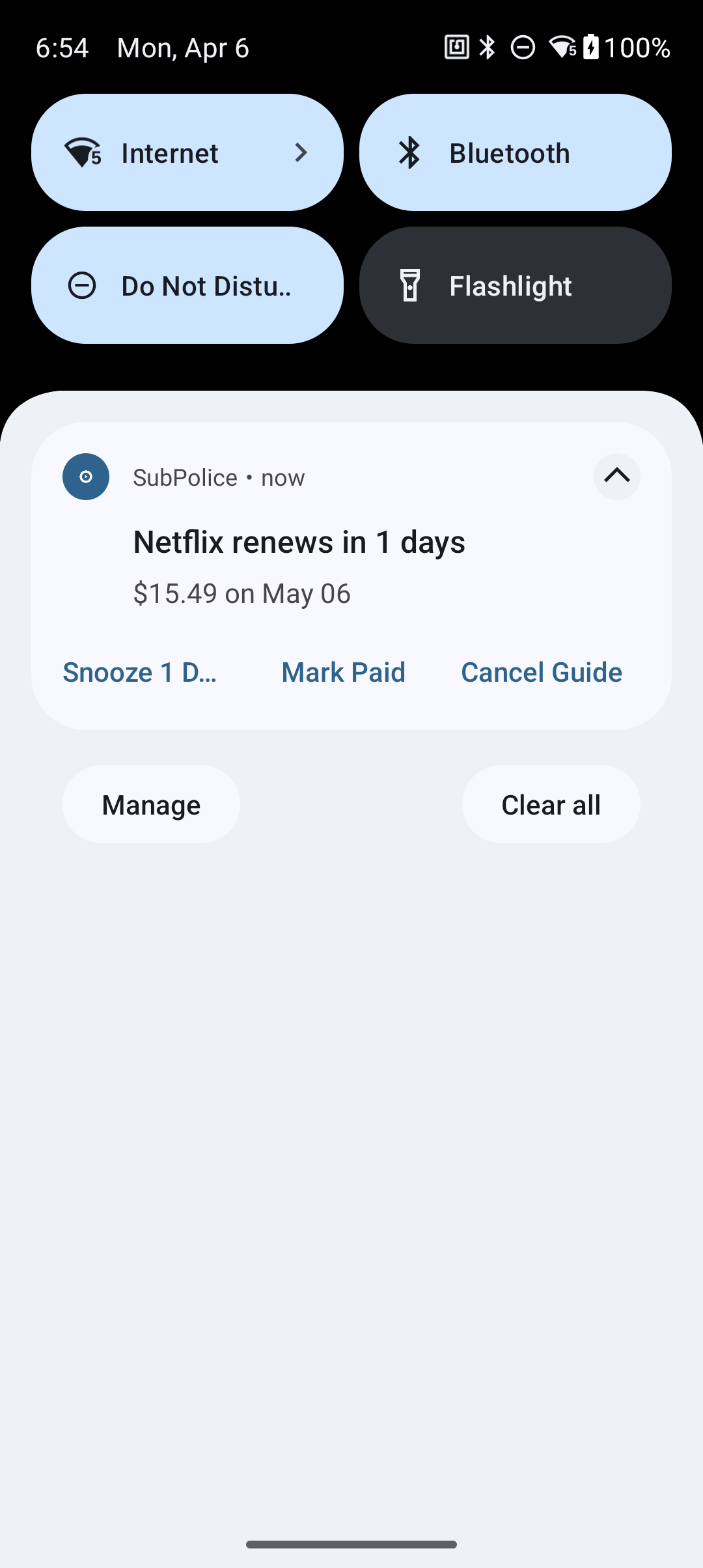
When SubPolice sends a renewal or trial alert, the notification includes quick action buttons so you can act without opening the app:
- Snooze 1 Day — delay the alert by one day if you need more time
- Mark Paid — confirm the renewal has been paid and dismiss the alert
- Cancel Guide (Premium) — opens a step-by-step guide to cancel the subscription directly
Tap the notification itself to open the subscription detail screen directly.
13. Free Trial Tracking
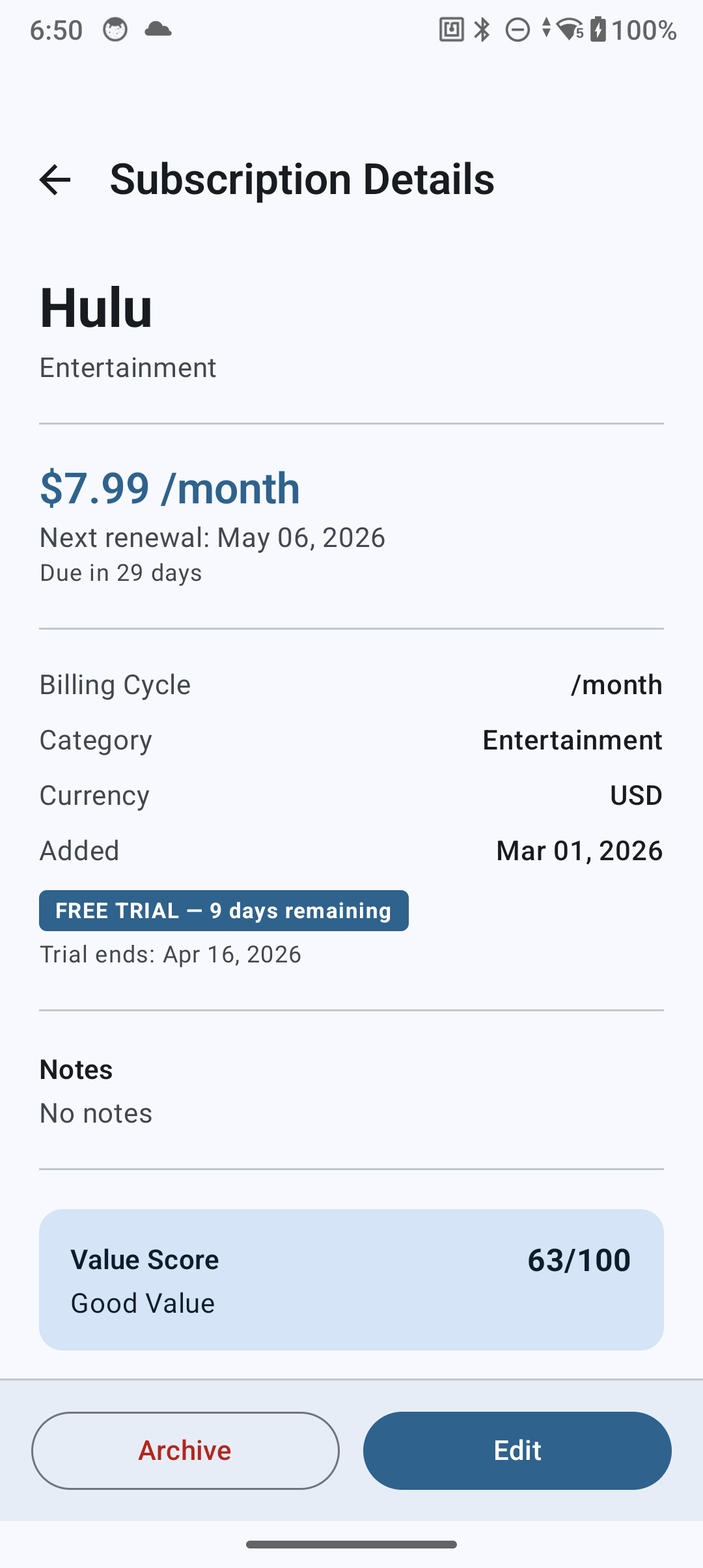
When adding a subscription, toggle "Free Trial" and set the trial end date. SubPolice will:
- Show a countdown timer on the subscription card
- Send alerts at 3 days and 1 day before the trial expires
- Help you cancel before you're charged
14. Spending Analytics
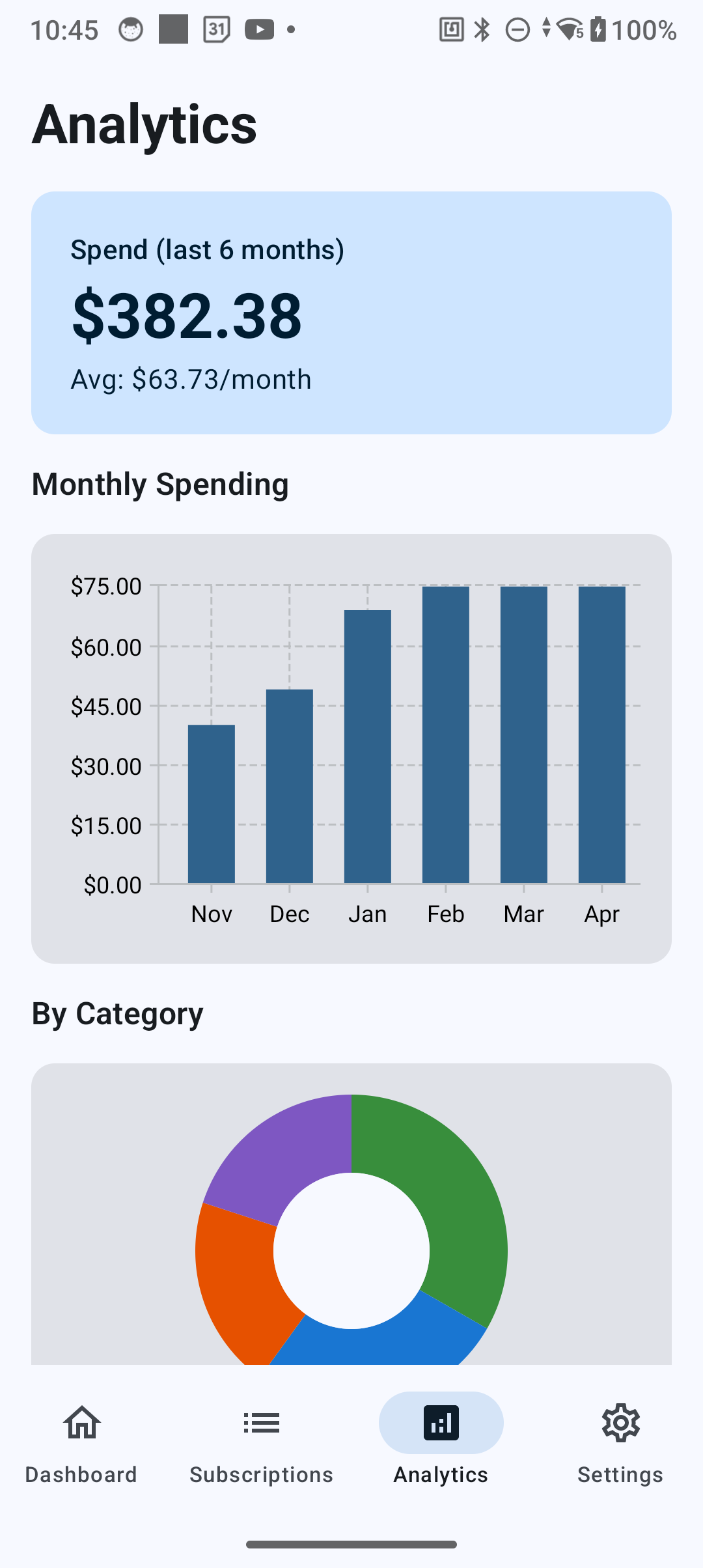
The Analytics tab gives you a clear picture of your subscription spending:
- Monthly bar chart — spending trends over the last 6 months
- Category donut chart — where your money goes by category
- Total and average cards — monthly average and total active subscriptions
Premium users get advanced analytics including year-over-year comparisons and category trends.
16. OCR Receipt Scanner
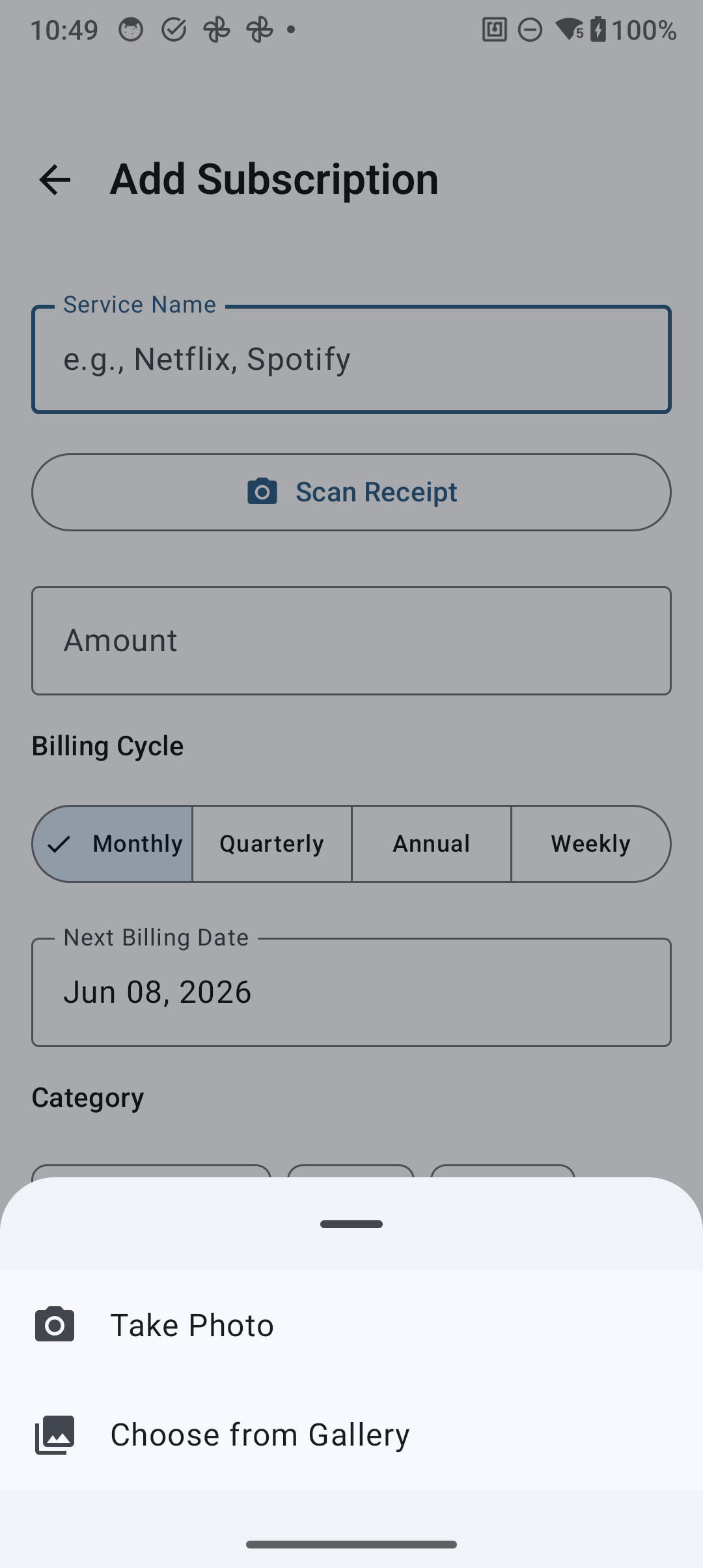
Premium feature. Instead of typing a service name and amount manually, scan any payment receipt or invoice directly.
- Tap the + button to open the Add Subscription screen
- Tap Scan Receipt
- Choose Camera to take a photo, or Gallery to pick an existing image
- SubPolice uses on-device ML Kit OCR to extract the service name and amount — no data leaves your device
- Review the pre-filled fields, adjust if needed, then tap Save
Works with printed receipts, digital invoice screenshots, and payment confirmation screens. Supports both Latin and Devanagari scripts.
17. Encrypted Backup & Restore
Premium feature. Export all your subscription data to an encrypted file and restore it on any device.
Creating a backup
- Go to Settings > Backup & Data > Backup Data
- Set a password — this encrypts your backup file
- Tap Create Backup
- A
.subpolicefile is created and the Android share sheet opens — save it to Drive, email it, or store it anywhere you like
Restoring from a backup
- Go to Settings > Backup & Data > Restore Data
- Pick your
.subpolicefile - Enter the password you set during backup
- Tap Restore — all subscriptions are imported instantly
Backups are encrypted with AES-256-GCM. SubPolice never sees your password and cannot decrypt your file. Keep your password safe — there is no recovery option.
18. Waste Score Analysis
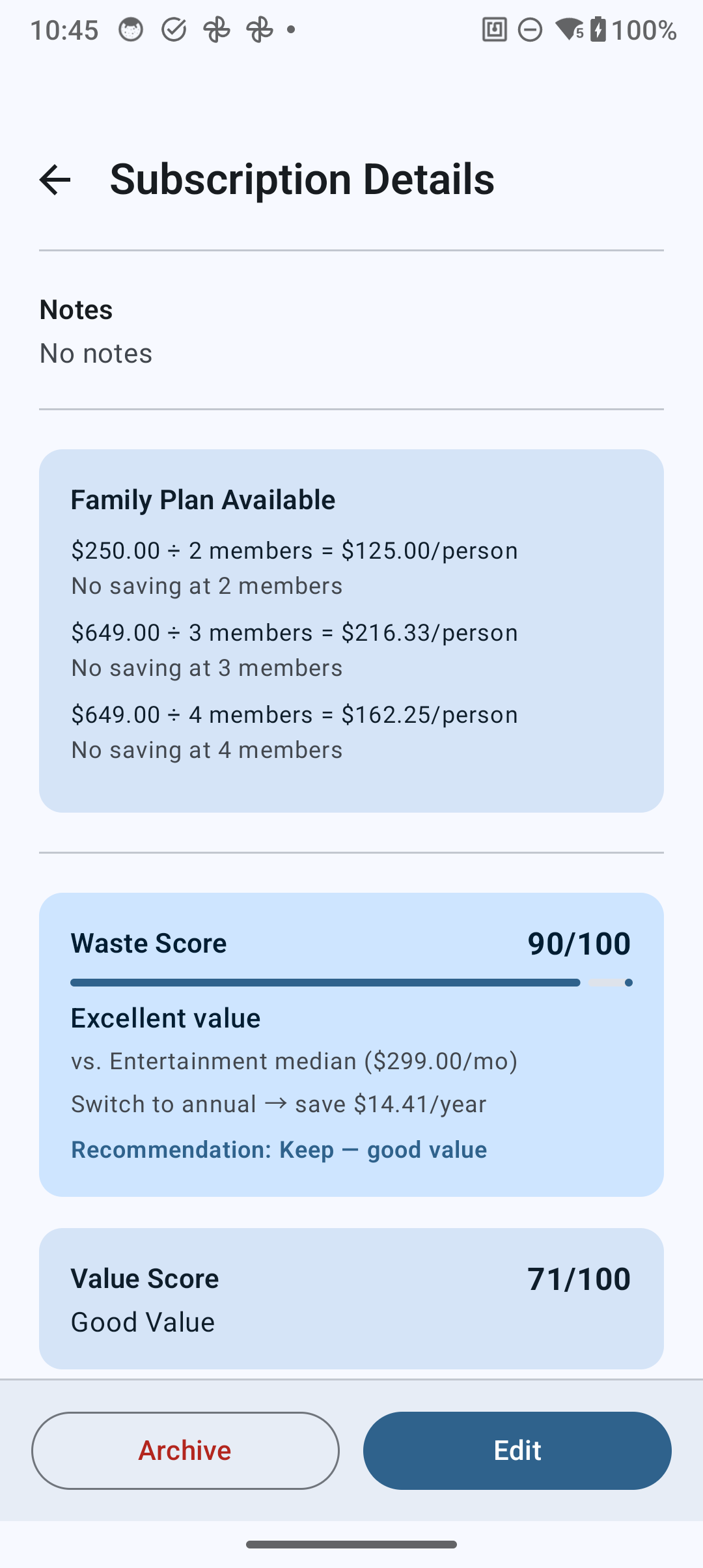
Premium feature.Every subscription gets an AI-powered Waste Score from 0–100 telling you how good value it is.
How the score is calculated
The score combines 5 signals:
- Price vs benchmark — how your plan compares to the category median
- Billing cycle — annual plans score higher than monthly (you save by committing)
- Tenure — long-standing subscriptions score higher than new ones
- Trial status — free trials score lower (you haven't paid yet)
- Category benchmarks — kept current via Remote Config
Score levels
- Excellent (75–100) — great value, keep it
- Good (50–74) — reasonable, worth a quick review
- Fair (30–49) — consider whether you use it enough
- Poor (0–29) — strong candidate for cancellation
The Waste Score chip appears on each subscription card in your list. Open the detail screen to see the full breakdown.
19. Family Plan Detector
Premium feature. SubPolice checks each tracked subscription against a catalog of services that offer family or group plans.
If you're paying the solo rate for a service like Netflix, Spotify, or YouTube Premium, a Sharing Opportunity card appears on the subscription detail screen showing:
- The family plan name and total price
- How many members can share the plan
- Your estimated cost per person if you split it
- How much you'd save compared to your current solo plan
No action is taken automatically — it's a suggestion for you to explore. The catalog currently covers 10 major services and is updated with each app release.
20. Data & Privacy
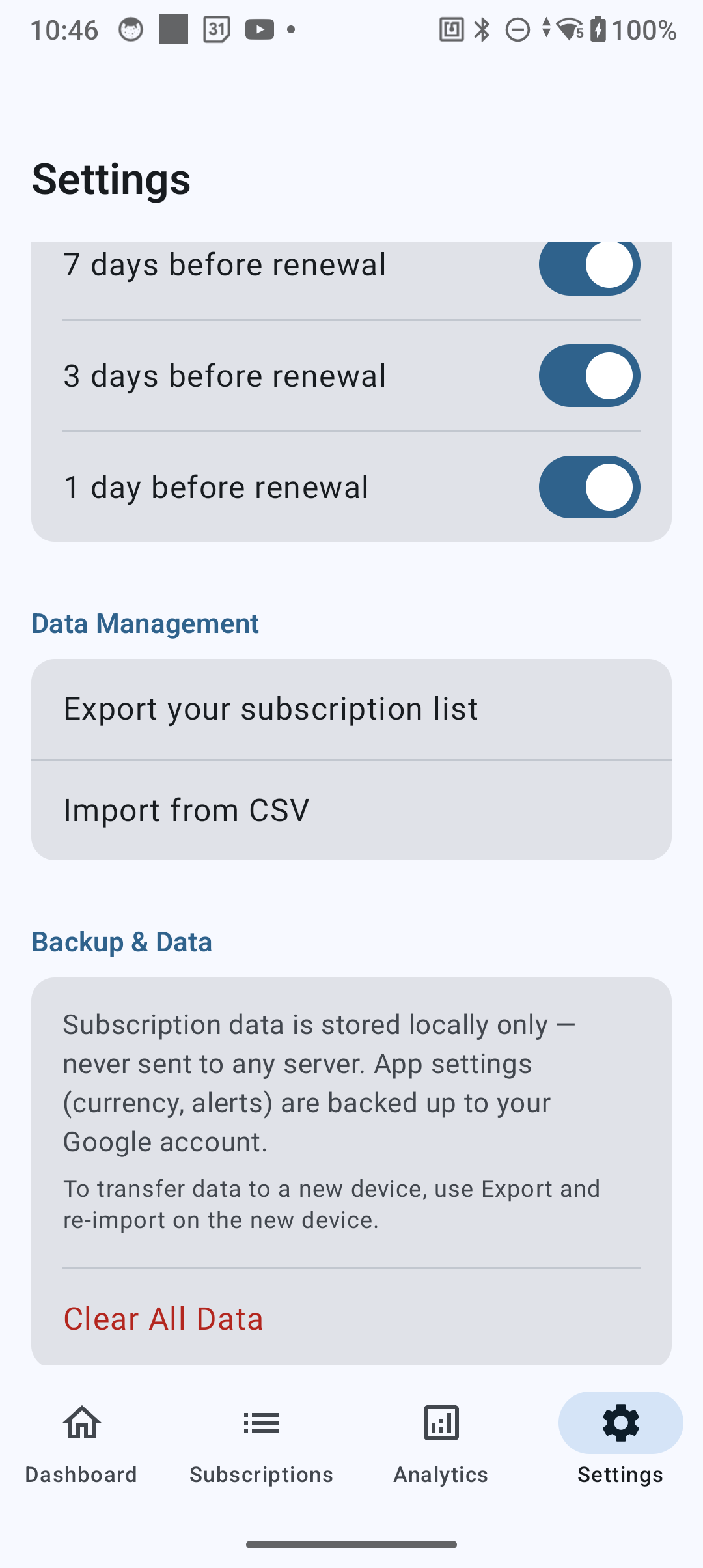
SubPolice stores all your data locally on your device using Android's Room database. No subscription data is ever sent to any server.
Importing your data
Go to Settings > Import from CSV to import subscriptions from a CSV file. This is useful for migrating from another app or restoring from a previous export.
Exporting your data
Go to Settings > Export Datato export your subscriptions as CSV, JSON, or PDF (Premium). You can share these via Android's share sheet.
Installed app scanning
SubPolice can scan your installed apps to detect subscription services. This check is performed entirely on-device — no list of your installed apps is ever sent to any server. We only check for apps from our known subscription catalog.
Deleting your data
Go to Settings > Clear All Data to permanently erase all locally stored data. Uninstalling the app also removes all data from your device.
For full details, read our Privacy Policy.
21. Troubleshooting
Subscriptions not being detected?
- Verify Notification Access is enabled: Settings > Apps > Special access > Notification access
- Check battery optimization is disabled for SubPolice
- On Xiaomi/MIUI: enable Auto-start and lock the app in recent apps
- Note: services that only send email billing (not push notifications) cannot be auto-detected
Widget not updating?
- The widget updates every 6 hours automatically
- Ensure SubPolice is not being killed by your device's battery manager
- Try removing and re-adding the widget
App seems slow or unresponsive?
- Try clearing the app cache: Settings > Apps > SubPolice > Storage > Clear Cache
- Ensure you're running the latest version from Google Play
22. Contact Support
Need help? We're here for you.
- Email: support@akshantech.com
- Google Play: SubPolice on Google Play
We typically respond within 24 hours.